Drive Protect Guide
Cloud Security › Google Drive

How to Encrypt Files Before or After Uploading to Google Drive

Google Drive utilizes server-side encryption to protect your data from outside breaches, but it inherently retains the keys to your files. For truly sensitive data, financial records, or compliance-mandated documents, you need client-side encryption. Here is the definitive guide to locking down your cloud storage.

By Editorial Team Updated: May 2024 12 min read
Quick Answer

Does Google Drive encrypt files automatically? Yes, it uses AES-256 encryption in transit and at rest. However, Google controls the encryption keys. To achieve zero-knowledge privacy where even Google cannot see your files, you must encrypt files before uploading to Google Drive using third-party client-side encryption software like Cryptomator or Folder Lock.

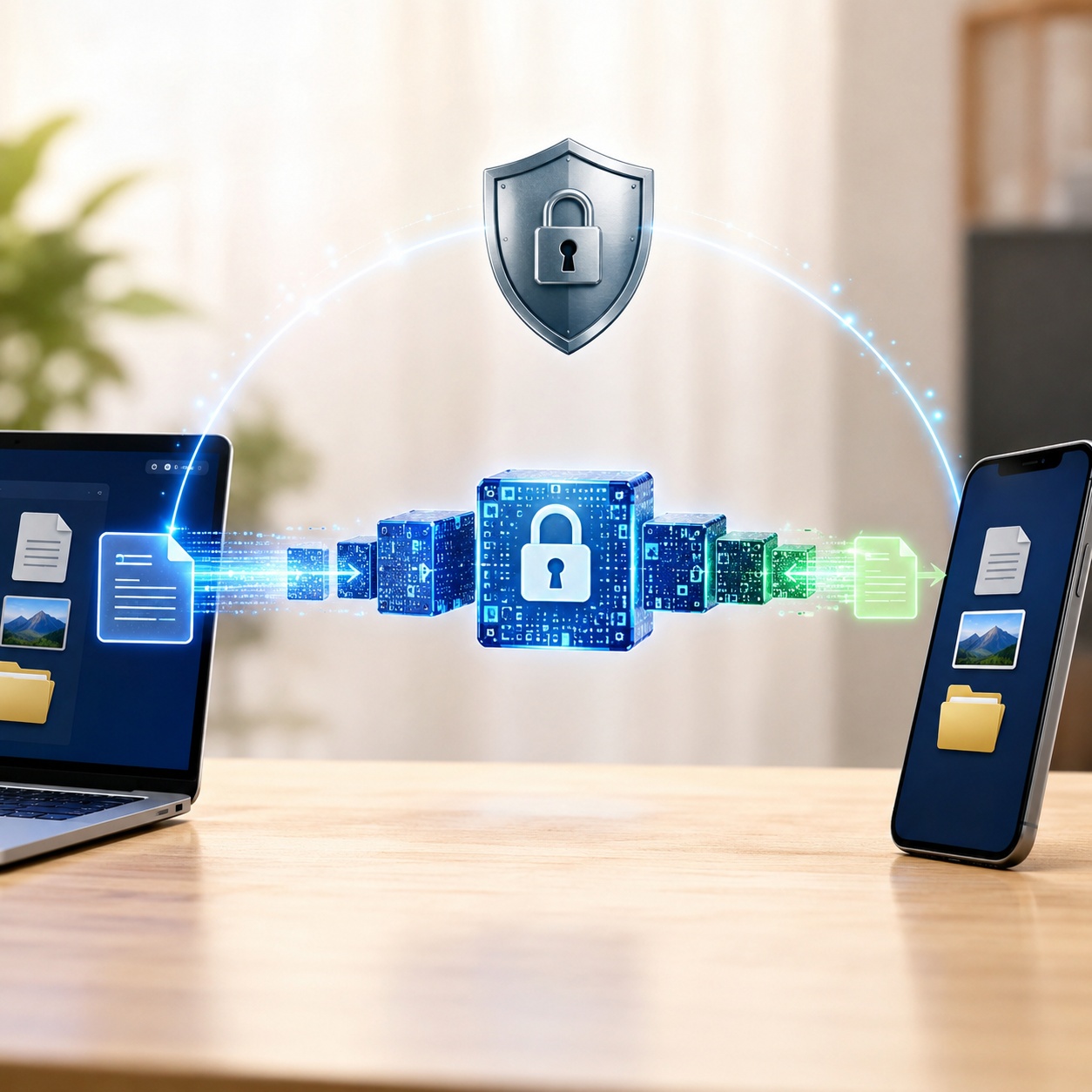
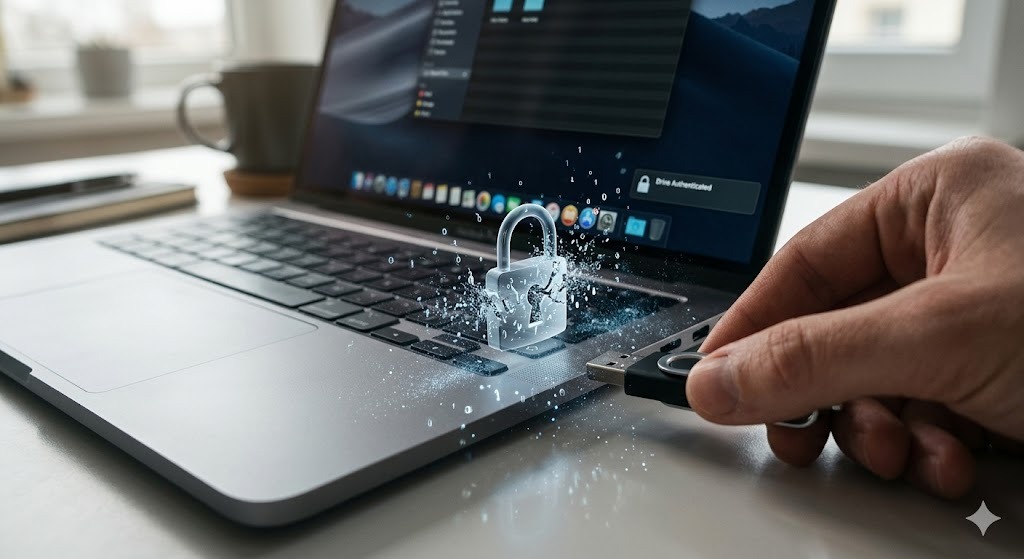
Client-side file encryption concept for protecting Google Drive uploads

Permissions vs Encryption — What Cloud Providers Don't Tell You

When investigating how to secure cloud files, many users confuse "sharing permissions" with "encryption."

If you restrict a Google Drive folder so that "Only people with access can open with the link," you are managing permissions. You are trusting Google's software logic to hide the file from unauthorized accounts. However, the file itself sits on Google's servers in a format that Google's systems (and potentially employees or law enforcement) can read.

Encryption alters the data itself. If you encrypt documents on Google Drive using a client-side tool, the file is scrambled before it leaves your computer. If someone bypasses Google's permission logic, or if a rogue app accesses your Drive, they only see garbled ciphertext.

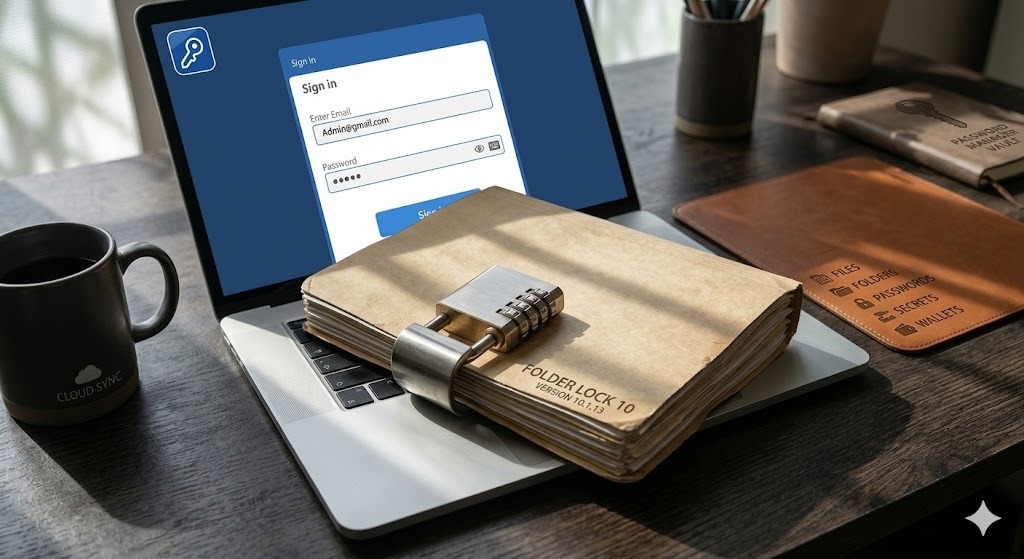
Cloud vault illustration showing encrypted files protected before upload

Does Google Drive Use End-to-End Encryption?

No. Standard Google Drive offers encryption in transit (TLS) and encryption at rest (AES-256). But it does not provide true End-to-End Encryption (E2EE) for personal accounts because Google holds the decryption keys to scan your files for search indexing and policy violations.

What You Need Before Starting

  • The Google Drive Desktop App: Most encryption tools require your Google Drive to be mounted as a local folder on your PC or Mac.
  • A Secure Master Password: If you encrypt a folder on Google Drive and lose the password, your data is permanently gone. There is no "forgot password" link for true zero-knowledge encryption.
  • Patience for Syncing: Encrypted volumes sometimes trigger full re-syncs when modified.
Encrypted backup platforms for secure cloud file storage

How to Encrypt Files Before Uploading to Cloud: 3 Methods

Method 1: The Native OS Approach (Virtual Disks)

You can create an encrypted virtual disk using Windows BitLocker or macOS Disk Utility, and save that disk file (.vhdx or .dmg) inside your Google Drive sync folder.

  • Pros: Free, built into your operating system.
  • Cons: Highly inefficient for cloud storage. Changing a single 1KB text file inside a 5GB virtual disk forces Google Drive to re-upload the entire 5GB file. It is also platform-locked (a Mac encrypted DMG cannot easily be opened on Windows).
  • Best for: Archival storage that you rarely edit.
Windows encryption options including BitLocker and device encryption

Method 2: Open-Source Tools (Cryptomator)

Cryptomator is designed specifically for cloud storage. It encrypts each file individually rather than creating a massive container. When you edit a file, only that specific encrypted file is re-synced.

  • Pros: Free for desktop, open-source, efficient syncing.
  • Cons: Mobile apps cost money. Setup can be highly technical. Does not offer additional security features like local PC locking or USB encryption.
  • Best for: Tech-savvy users who only need cloud encryption and don't mind community support.
Secure file syncing across Google Drive Dropbox OneDrive and iCloud

The Tool We Recommend for Most Users

While open-source tools work for tech enthusiasts, managing multiple encryption keys across local files, external drives, and Google Drive gets messy. This is why we recommend Folder Lock.

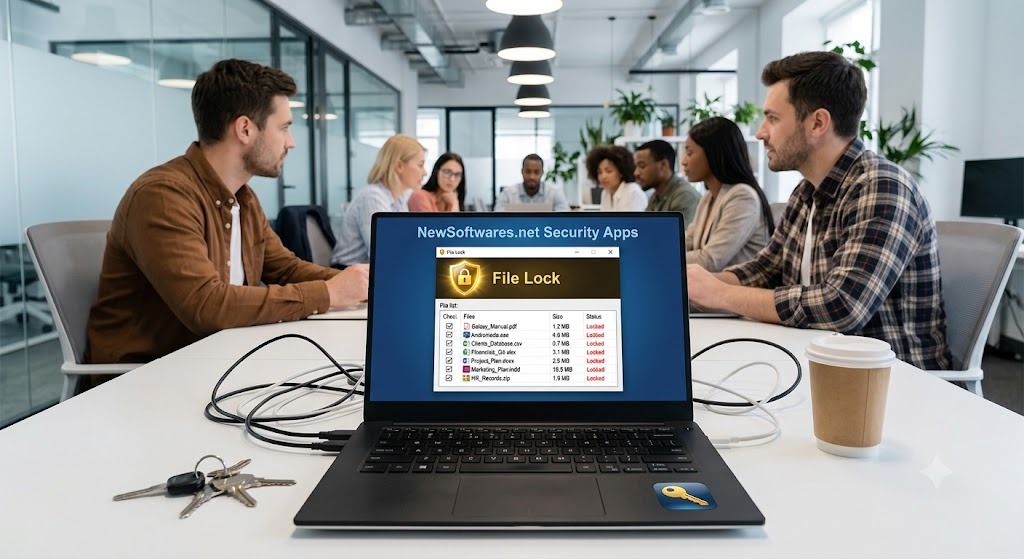
Folder Lock 10 app interface for creating encrypted lockers

Folder Lock provides AES-256 military-grade encryption in a unified dashboard. You can create encrypted "Lockers" directly inside your Google Drive, Dropbox, or OneDrive folders, and the software handles the mounting automatically. Beyond the cloud, it also secures USB drives and local files.

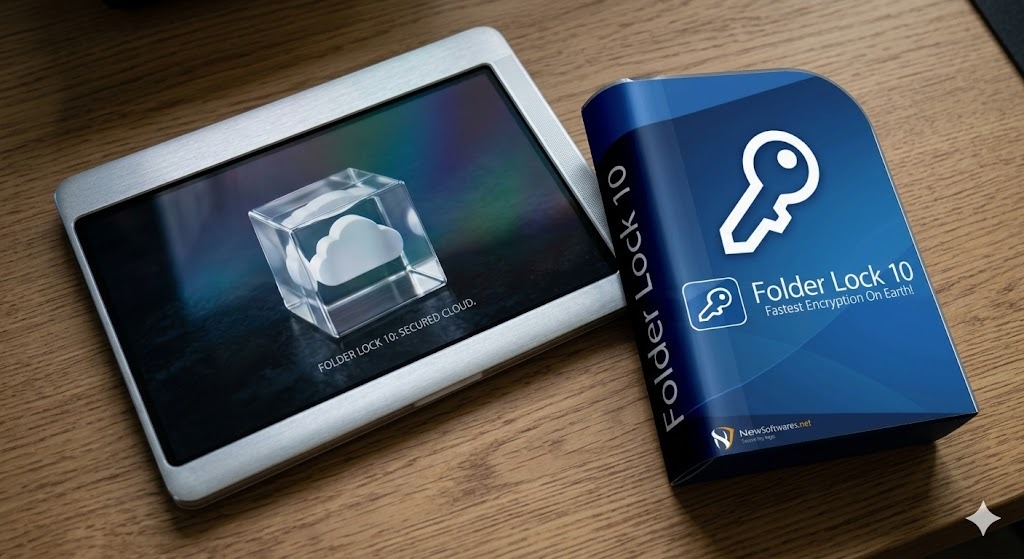
Folder Lock 10 product boxshot for secure file encryption

Windows compatible. AES-256 encryption.

Core Features: Why Folder Lock Fits the Cloud

Dynamic Locker Resizing
Unlike traditional virtual drives that eat up huge chunks of your hard drive, Folder Lock's encrypted lockers expand dynamically as you add files. This prevents Google Drive from constantly syncing empty encrypted space.
Cross-Platform Ecosystem
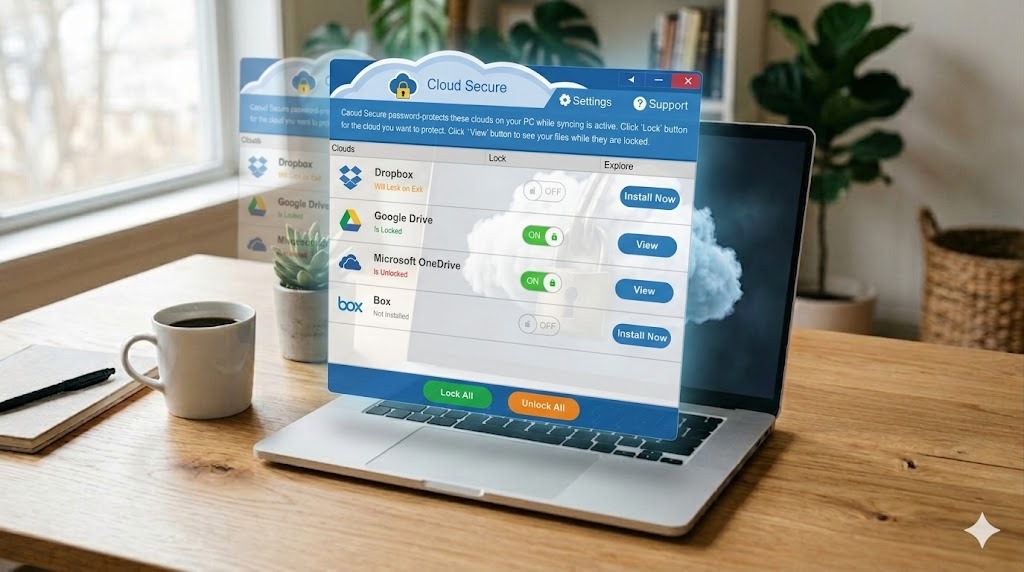
If you use SIBLING products like Cloud Secure or Folder Lock for iOS/Android, you maintain a consistent security posture across all devices rather than relying on disparate open-source apps.
Zero-Knowledge Architecture
The encryption keys are generated locally. Neither Google nor NewSoftwares (the developers of Folder Lock) have access to your master password.
Folder Lock cloud encryption features dashboard screen

Cloud Encryption Methods Compared

Method Ease of Setup Cloud Sync Efficiency Cross-Device Access Best For
Native OS (BitLocker/FileVault) Moderate Poor (re-syncs entire volume) None (OS locked) Cold storage archives
Password Protected ZIPs Easy Poor (must extract to edit) High One-off email attachments
Cryptomator Hard Excellent Moderate (Paid mobile apps) Open-source purists
Folder Lock (Recommended) Easy (Guided UI) Excellent (Dynamic sizes) High (Mobile apps available) Business & Everyday Users
Folder Lock 10 feature banner for data protection and encryption

Interactive: File Sharing Risk Calculator

Before you encrypt a folder on Google Drive, understand your current exposure. Use this tool to calculate the risk level of your current sharing habits.

Secure file sharing screen for encrypted cloud documents

Step-by-Step: How to Encrypt a Folder in Google Drive

Here is the exact workflow for securing files using our recommended approach.

  1. Install Google Drive for Desktop: Ensure your Google Drive appears as a physical drive letter (like G:) on your computer.
  2. Create a Secure Locker: Open Folder Lock. Select "Encrypt Files" and choose to create a new Locker.
  3. Set Path to Google Drive: When asked where to save the Locker, navigate to your Google Drive folder.
  4. Set a Master Password: Choose a strong, memorable passphrase. Do not lose this password.
  5. Mount and Move Files: Open the Locker (it acts like a virtual USB drive). Drag your sensitive files into it. Close the Locker.
  6. Once closed, Google Drive will sync the encrypted Locker file to the cloud. Even if your Google account is hacked, the attacker only downloads an unbreakable encrypted blob.

Desktop locker screen for encrypting a folder before Google Drive sync

Troubleshooting: When How to Encrypt Files on Google Drive Fails

"Google Drive is constantly syncing my entire encrypted folder."

This happens if you used a fixed-size VHDX or standard ZIP file. Switch to an encryption tool that supports dynamic resizing or file-by-file encryption (like Folder Lock or Cryptomator).

"How to recover access to a locked folder you own if you forgot the password?"

If you used a true zero-knowledge client-side encryption tool, there is no backdoor. Your data cannot be recovered without the password. Always keep a backup of your master password in an offline physical safe or a dedicated password manager.

"Can I make a Google Doc password protected?"

Natively, no. Google Docs, Sheets, and Slides cannot be individually password protected within the Google web interface. You can only restrict permissions. If you need a password-protected document, you must create it in Microsoft Word/Excel offline, password protect it there, and upload the file to Google Drive (without converting it to Google format).

Folder Lock share permissions screen for controlled access to encrypted files

Frequently Asked Questions

Does Google Drive encrypt files automatically?

Google Drive encrypts data in transit and at rest on their servers. However, they control the keys. They do not automatically apply client-side zero-knowledge encryption.

Can I password protect a Google Doc?

No, Google Docs does not have a native password-protect feature. You must restrict access via email permissions, or use an offline Word document, encrypt it, and upload it.

Can Google see my files in Google Drive?

Technically, yes. Google's automated systems scan files for search indexing, malware, and terms of service violations. If you want absolute privacy, you must encrypt files before uploading.

What is zero-knowledge encryption in cloud storage?

It means the service provider (like Google or Dropbox) has zero knowledge of your encryption keys or the contents of your files. Only you hold the key to decrypt the data.

How to encrypt files on Windows 10 before uploading?

You can use built-in BitLocker to encrypt a virtual drive, or use third-party software like Folder Lock to create secure containers specifically optimized for cloud syncing.

Is OneDrive/Google Drive/Dropbox safe for confidential business files?

They are secure against outside hackers, but not against insider threats or subpoena. For true HIPAA/GDPR compliance with highly sensitive data, client-side encryption is heavily recommended.

Secure folder synchronization workflow for private cloud files

In-Depth Answers: Leading Zero-knowledge Cloud Encryption Services

Users frequently ask about leading zero-knowledge cloud encryption services to protect files before uploading to Google Drive or Dropbox. The market is divided into two approaches:

  • Integrated Cloud Providers: Services like Sync.com or Tresorit build zero-knowledge encryption directly into their own cloud storage. You abandon Google Drive entirely.
  • Overlay Software: Services like Boxcryptor (recently acquired by Dropbox), Cryptomator, and Folder Lock act as an overlay. You keep your existing Google Drive 15GB or 2TB plan, but use the software to encrypt the files locally before Google Drive syncs them. This is generally more cost-effective.
Secured cloud ecosystem for zero-knowledge encrypted storage

Our Verdict: The Bottom Line

If you are storing taxes, client data, or sensitive intellectual property on the cloud, relying solely on Google's permission settings is a risk. Encrypting your files before they leave your computer is the only way to guarantee total privacy. For its ease of use, dynamic locker sizing, and cross-platform capabilities, we recommend adding a dedicated encryption layer to your workflow.

Folder Lock 10 product boxshot for secure cloud file encryption
Try Folder Lock Free → Get the Full Version →